An App Store rejection arrives as a message in App Store Connect: a guideline number, a few sentences from the reviewer, often a screenshot of the screen that failed. It is not a verdict on your app or your account. Apple's App Review handled more than 9.1 million submissions in 2025, most of them within 24 hours, and a large share of first submissions come back at least once. What matters is what you do in the hour after the message.
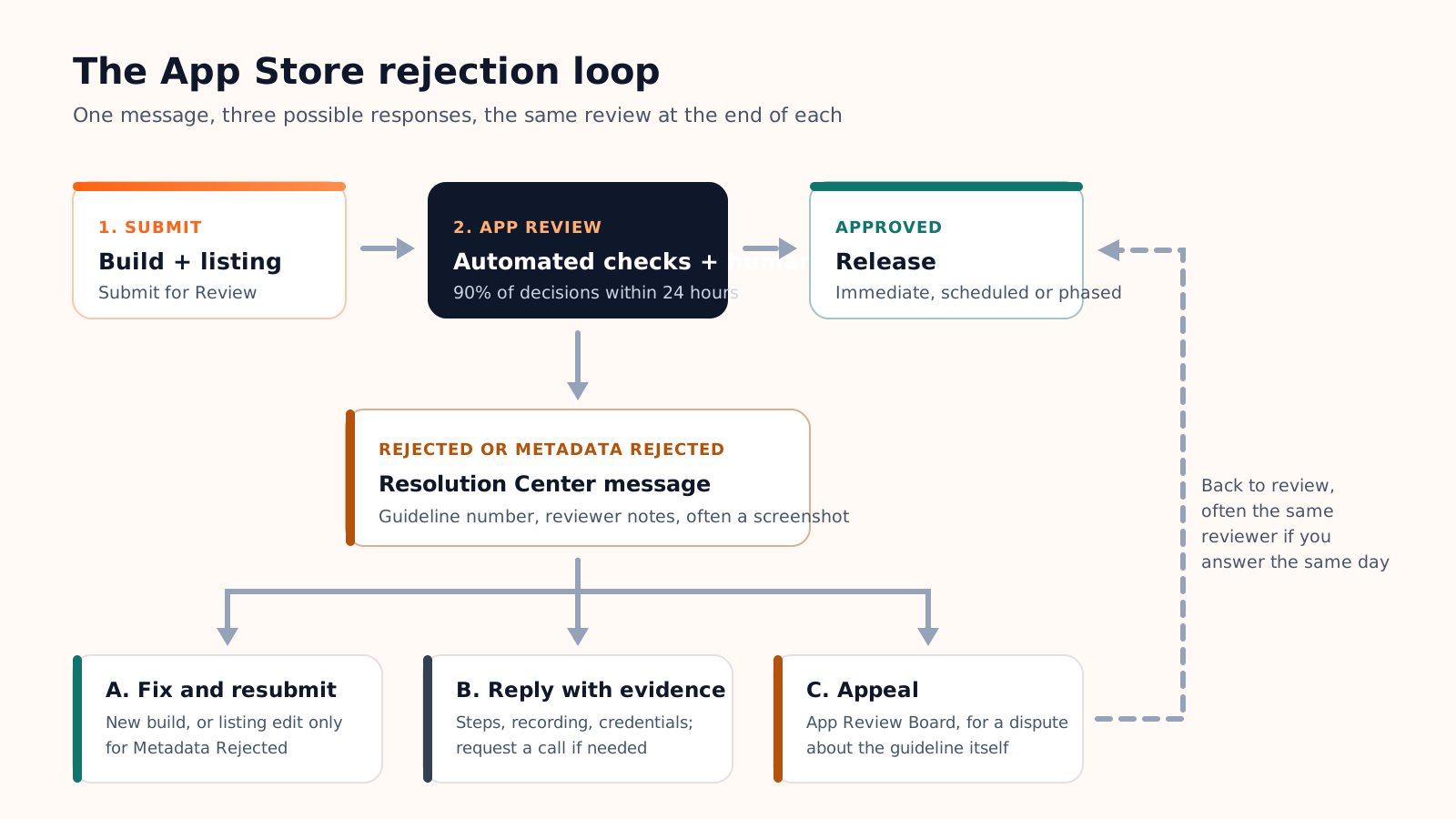
That decision comes down to three questions. Is the reviewer right? Does the fix need a new build, or only a change to the listing? And if you disagree, do you reply, or do you appeal? This guide answers them in order: how a rejection reaches you and what the statuses mean, the eight reasons that cover most rejections, the three possible responses, and a checklist for the resubmission.
If you are earlier in the journey, our guide on how to publish an app on the App Store covers the full path from the developer account to the release; this article starts the day the review comes back negative.
How a rejection reaches you and what the statuses mean
App Review combines automated checks, which catch crashes, private API use and malware, with a human reviewer who installs your build, opens the listing, reads your review notes and uses the app the way a customer would. When something fails, the reviewer writes a message in the Resolution Center of App Store Connect and the version changes status. Three statuses matter:
- Rejected. The binary itself has a problem: a crash, a missing feature, a permission issue. You will almost always need to upload a new build.
- Metadata Rejected. The build is fine; the listing is not. Screenshots, description, keywords, privacy answers or review notes need a change, which you make directly in App Store Connect and resubmit without a new build.
- Developer Rejected. You withdrew the version yourself, for example to replace a build. Nothing to answer.
The eight reasons behind most first-submission rejections
The App Review Guidelines run to five chapters and dozens of rules, but the rejections a first submission actually receives cluster around a handful. Here they are, with what the reviewer saw and what fixes it.
| Guideline | What the reviewer saw | What fixes it |
|---|---|---|
| 2.1 Performance | The app crashed at launch or in a core flow on the reviewer's device | Reproduce on the TestFlight binary, on several devices and iOS versions, and fix. Attach nothing; upload a new build. |
| 2.1 App completeness | A demo account that does not work, placeholder content, a feature marked "coming soon" | Provide a working login with realistic data in App Review Information; remove or finish placeholders. |
| 2.3 Accurate metadata | Screenshots or description show features that are not in the build | Metadata Rejected: update the screenshots and text to match the app, resubmit the same build. |
| 4.2 Minimum functionality | A website in a frame, or an app that does too little to justify a native install | Add native value: offline use, notifications, device features, an experience the website does not offer. |
| 4.3 Spam | An app that duplicates another, from you or from a template, in a saturated category | Differentiate substantially, or merge the variants into one app. |
| 5.1.1 Data collection and storage | Missing privacy policy URL, App Privacy labels that contradict the app, permission prompts without a reason, a missing tracking prompt | Publish the policy, align the labels with what the app really collects, write a purpose string for each permission, show the App Tracking Transparency prompt if you track. |
| 3.1.1 In-app purchase | Digital content or subscriptions sold outside Apple's in-app purchase | Use in-app purchase for digital goods; external payment stays allowed for physical goods and services consumed outside the app. |
| 1.5 Developer information | A support URL that returns an error or a page with no way to contact you | Metadata Rejected: point the support URL to a live page with a contact form or email. |
The special case of web wrappers
Guideline 4.2 is the one that surprises founders who packaged their website into an app. Apple's position is consistent: if the app is the website in a WebView with nothing the browser could not do, it does not belong on the App Store. The fix is not a better description; it is functionality. Offline access, push notifications, camera or location features, a native navigation that the site does not have. If the project started as a web app, the honest route is a real native build, which is why our guide to creating a mobile app without coding separates tools that generate native code from tools that wrap a site.
How to respond: fix, reply, or appeal
Read the message like a checklist
Before deciding anything, extract from the message the guideline number, the exact step the reviewer describes, the device and iOS version noted at the top, and any attached screenshot. Then reproduce it yourself on the same build through TestFlight. Half of the time the reviewer is right and you had not seen it; a quarter of the time the reviewer hit an environment you did not test, such as a fresh install with no data; the rest is a genuine disagreement.
Fix and resubmit
For a Metadata Rejected status, edit the listing in App Store Connect and click resubmit: no new build, and the second review is usually quick. For a Rejected status, upload a corrected build, select it in the same version and submit again. In both cases, write a short note in the Resolution Center saying what changed. Reviewers read it, and it steers the second review to the fix rather than restarting from zero.
Reply when the reviewer is wrong
If you cannot reproduce the problem or the guideline does not apply, answer in the Resolution Center rather than resubmitting the same build in silence. Stay factual: the exact steps you followed, the device and version, a screen recording that shows the feature working, the credentials to use. If the reviewer misunderstood what the app does, explain the use case in two sentences. You can also request a phone call from App Review in the same thread; it is not fast, but it unblocks the conversations that text cannot.
Appeal to the App Review Board
An appeal is for a disagreement about the guideline itself, not about a fact. It goes to the App Review Board through the form linked from the rejection, and it takes days, sometimes more. Use it after the Resolution Center reply has failed, and write it for someone who has never seen your app: what it does, which guideline was cited, why you believe it does not apply. If the guideline has changed recently, or if you think it is being applied inconsistently, say so and give examples.
Expedited review
Apple grants an expedited review for a critical bug fix in a live app or a time-sensitive event, not for a first release that is late. Requesting one for a launch is refused and wastes a day. If your deadline is real, the only lever is to submit early and answer any message within hours.
A checklist to avoid the second rejection
Most second rejections repeat the first, or expose the next issue the reviewer did not reach because the first one stopped the review. Before resubmitting, run through this list once:
- The TestFlight binary opens on a fresh install, with no data, on the oldest iOS version you support.
- The demo account in App Review Information logs in, and the data behind it looks real.
- Every permission prompt has a purpose string that says what the feature does with the data.
- The privacy policy URL opens, and the App Privacy answers match the SDKs in the app.
- Screenshots show screens that exist in this build, on the right device sizes.
- Any digital purchase goes through in-app purchase, and any physical one is clearly physical.
- The support URL and the marketing URL load and offer a way to contact you.
- Placeholder text, test buttons and "coming soon" screens are gone.
- The review notes explain anything unusual: a hardware requirement, a region-locked feature, a login through a third party.
If you build with Cadrant's mobile app builder, the parts of the pipeline that cause build-level rejections are handled for you: the native binary is compiled and signed on your Expo account, submitted to your App Store Connect, and the app is a real Expo application rather than a wrapped website, which keeps guideline 4.2 out of the picture. What remains yours is exactly this checklist: the listing, the privacy answers, the demo account and a run through TestFlight before you press submit. The publishing documentation lists the App Store Connect steps in order.
The short version
- A rejection is a message with a guideline number; the status tells you whether the build or the listing is at fault.
- Eight guidelines explain most first rejections: crashes, demo account, metadata, minimum functionality, spam, privacy, in-app purchase, support URL.
- Fix and resubmit when the reviewer is right, reply with evidence when the facts are wrong, appeal only when the guideline itself is in dispute.
- Answer within the day, and run the checklist before every resubmission.
Handled this way, a rejection costs a day or two, not a launch. The apps that stay stuck are the ones that resubmit the same build hoping for a different reviewer. On Android, Google's logic is different: our guide explains what to do when Google Play rejects an app.