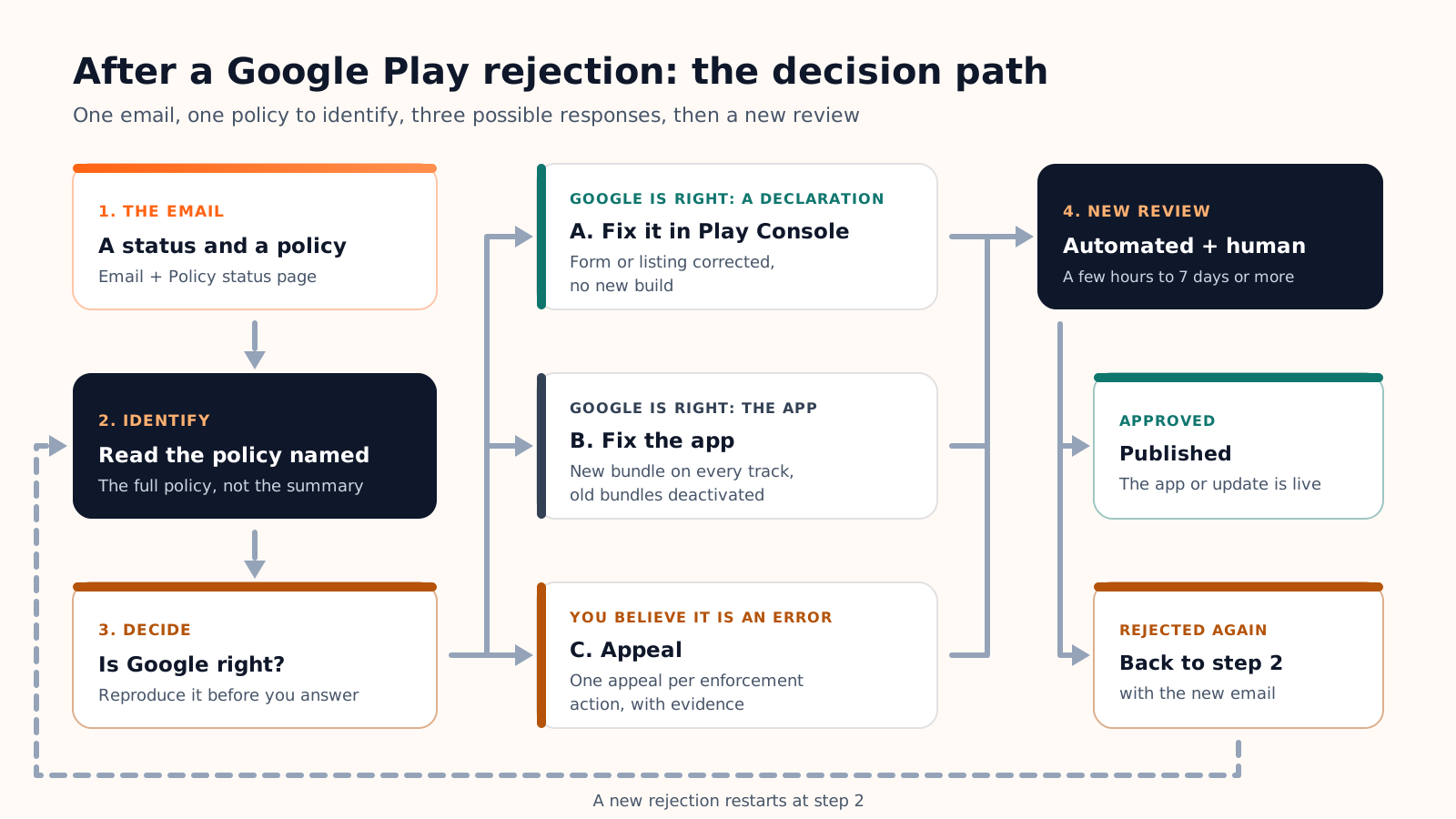
A Google Play rejection means your new app or update did not pass review and will not be published until the policy issue named by Google is fixed. It is usually fixable: Google states that a rejection does not affect the standing of your developer account, and if it was an update, the version already published stays available. First step: open the email from Google Play and the Policy status page in Play Console, and identify the policy named and the exact status.
In 2025, Google prevented more than 1.75 million policy-violating apps from being published and banned more than 80,000 developer accounts, according to its safety report of February 2026. This guide covers what each status means, the eight policy issues behind most rejections, the three possible responses, and a checklist before the next review.
Earlier in the journey? Our guide to publishing an app on Google Play covers the path from the developer account to production.
What the email means: rejected, removed or suspended
Google reviews apps with automated and human evaluation, before and after publication. On a violation, it emails the developer account with the action taken and how to appeal, and the app's Policy status page shows the active enforcement.
| Status | What it means | What you can still do |
|---|---|---|
| Rejected | The new app or update is not published. A version already live stays available; ratings, statistics and account standing are untouched. | Fix and resubmit, or appeal. |
| Removed | The app and its previous versions leave Google Play. No immediate effect on the account, but multiple removals may lead to a suspension. | Submit a compliant update (users, statistics and ratings are retained), or appeal. |
| Suspended | The app is removed, its app bundle can no longer be used, and users, statistics and ratings are forfeited. It counts as a strike against the account. | Appeal: only a successful appeal reinstates the app. |
| Limited visibility | The app stays on Google Play and opens by direct link, but is harder to discover. No effect on the account. | Follow the email's instructions, or appeal. |
| Account termination | All apps of the account are removed, publishing is closed, and related accounts are terminated too. | One appeal, within 180 days. |
The eight policy issues behind most rejections
The Developer Policy Center lists dozens of policies, but a first submission usually trips on the same few; Google's 2025 report cites credentials, permissions and broken privacy policy links among the common reasons. Here are the eight to check first.
A Data safety form that contradicts the app
- What Google checks. Under the User Data policy, the Data safety section must cover everything the app collects and shares, third-party SDKs included; "collect" means any data sent off the device. Apps whose declaration contradicts their behaviour face blocked updates or removal.
- The fix. List every SDK in the build (analytics, crash reporting, ads, sign-in), read each provider's Data safety guidance and correct the form in App content.
A privacy policy that is missing or unreachable
- What Google checks. Every app needs a privacy policy link in Play Console and inside the app, even if it collects no data, on an active, public URL that is not geofenced and not a PDF. Apps with account creation must also offer account deletion, in the app and through a web link.
- The fix. Publish the policy as a normal web page, link it from the settings or sign-up screen, and enter the account deletion URL in Play Console.
Permissions the app cannot justify
- What Google checks. The Permissions and APIs that Access Sensitive Information policy allows only what current features promoted in the listing need. SMS and Call Log permissions are reserved for default handlers, background location can be rejected without a compelling justification, and all files access must pass an access review.
- The fix. Remove every permission no feature uses, including those added by libraries, and complete the Permissions declaration form where required.
Sign-in details that do not let the reviewer in
- What Google checks. If part of the app sits behind a login, a location or a paywall, Play Console requires access under Sign-in details in App content: reusable, valid at all times and from any location, in English, and able to bypass two-step verification. If the password expires, the app may be rejected.
- The fix. Create a permanent demo account with realistic data and add the instructions.
An app that crashes or does too little
- What Google checks. The Functionality, Content, and User Experience policy bans apps that crash, freeze, do not install or do not load, and apps with limited functionality, such as static text or PDF apps.
- The fix. Install the exact bundle from a testing track on a clean device, with a new account, and fix what breaks. If the app is thin, add real functionality.
A webview, affiliate or copycat app
- What Google checks. The Spam policy bans apps whose primary purpose is to show a webview of a website without its owner's permission or to drive affiliate traffic, and apps that merely repeat the experience of others, including near-identical apps from one developer.
- The fix. Wrap only a site you own or administer, give the app functionality of its own, and merge near-duplicate apps into one.
A misleading listing or a borrowed brand
- What Google checks. The Metadata policy limits the title to 30 characters and bans emojis, ALL CAPS outside a brand name, claims such as "#1", and anonymous testimonials. The Impersonation and Intellectual Property policies ban titles, icons or logos implying a link with a company you do not represent.
- The fix. Rewrite the title, description and screenshots to match the app, and remove third-party names and logos unless you hold written permission.
Digital purchases outside Google Play's billing system
- What Google checks. The Payments policy requires Google Play's billing system for digital content, subscriptions and app features, and forbids leading users to another payment method. Physical goods and services must not use it; alternative billing and external links exist only through programs in eligible countries.
- The fix. Move digital purchases to Google Play's billing system, or enrol in the program that applies to your region.
How to respond: fix the declaration, fix the app, or appeal
Fix a declaration in Play Console
When the issue sits in a form or in the listing (Data safety, privacy policy URL, sign-in details, title, screenshots), correct it in Play Console. Nothing is reviewed until you click Send for review on the Publishing overview page. No new build is involved.
Fix the app and resubmit
When the build is at fault, upload a compliant app bundle. One trap in Google's procedure: the fixed bundle must replace the non-compliant one on every track where it is active, testing tracks included, and the old bundles must be deactivated. Otherwise the resubmission fails, and live versions may be removed.
Appeal when you believe Google is wrong
Follow the instructions in the enforcement email, or use the Appeal button on the Policy status page; the Play Console Help page on removed apps links to the same form. You get one appeal per enforcement action: state the policy cited, why it does not apply, and attach evidence. Google answers appeals only in Chinese, English, Japanese and Korean, and publishes no response time for app appeals.
What not to do
Do not resubmit before every violation is fixed, and do not push the same app under a new package name or from another account. Google states that after a warning, a second app that does the same thing will almost certainly lead to a suspension or an account termination, and that any account opened after a termination is terminated too, without a refund of the registration fee.
A checklist before you send for review again
Most second rejections repeat the first, or reveal the next issue in line. Run this list before every submission:
If you build with Cadrant's mobile app builder, the build and the delivery are handled: the Android build runs on your own Expo account, is signed with an upload key that Cadrant generates and keeps, and Expo submits the app bundle to your own Play Console as a draft release on the internal testing track. Policy compliance stays with you as the publisher: the store listing, the privacy policy, the Data safety form, the content rating, the permissions and the content itself.
What changes compared with Apple's App Review
If you publish on both stores, the reflexes from one do not transfer entirely:
| Google Play | Apple App Store | |
|---|---|---|
| Where the decision arrives | Email to the developer account, plus the Policy status page in Play Console | Message in App Store Connect |
| Stated review time | A few hours to seven days, longer in exceptional cases | 90% of submissions reviewed in less than 24 hours, on average |
| Documented routes | Fix and resubmit, or appeal | Correspond with App Review, resubmit, or appeal |
| Appeal | One per enforcement action, answered in four languages | One per rejected submission, to the App Review Board |
Our guide to an App Store rejection covers the Apple side in the same order. On both stores: read what was cited, fix the cause rather than the symptom, and submit once.